Search Console
See which Google searches showed your site and which were clicked, next to your own numbers, with a read-only service account.
trckable counts visits. Google Search Console knows the half before the visit: which searches showed your site, how often, at what position, and how many people clicked. Connect the two and the Search tab in the Sources card shows Google's numbers for the same period you are looking at.
What you need
A Google Cloud service account with read-only access to your Search Console property. It takes about five minutes, once. trckable uses a service account instead of "Sign in with Google" because that needs a Google app of your own with a redirect back to your server, which cannot work on localhost or behind a firewall. A service account works anywhere.
Connect it
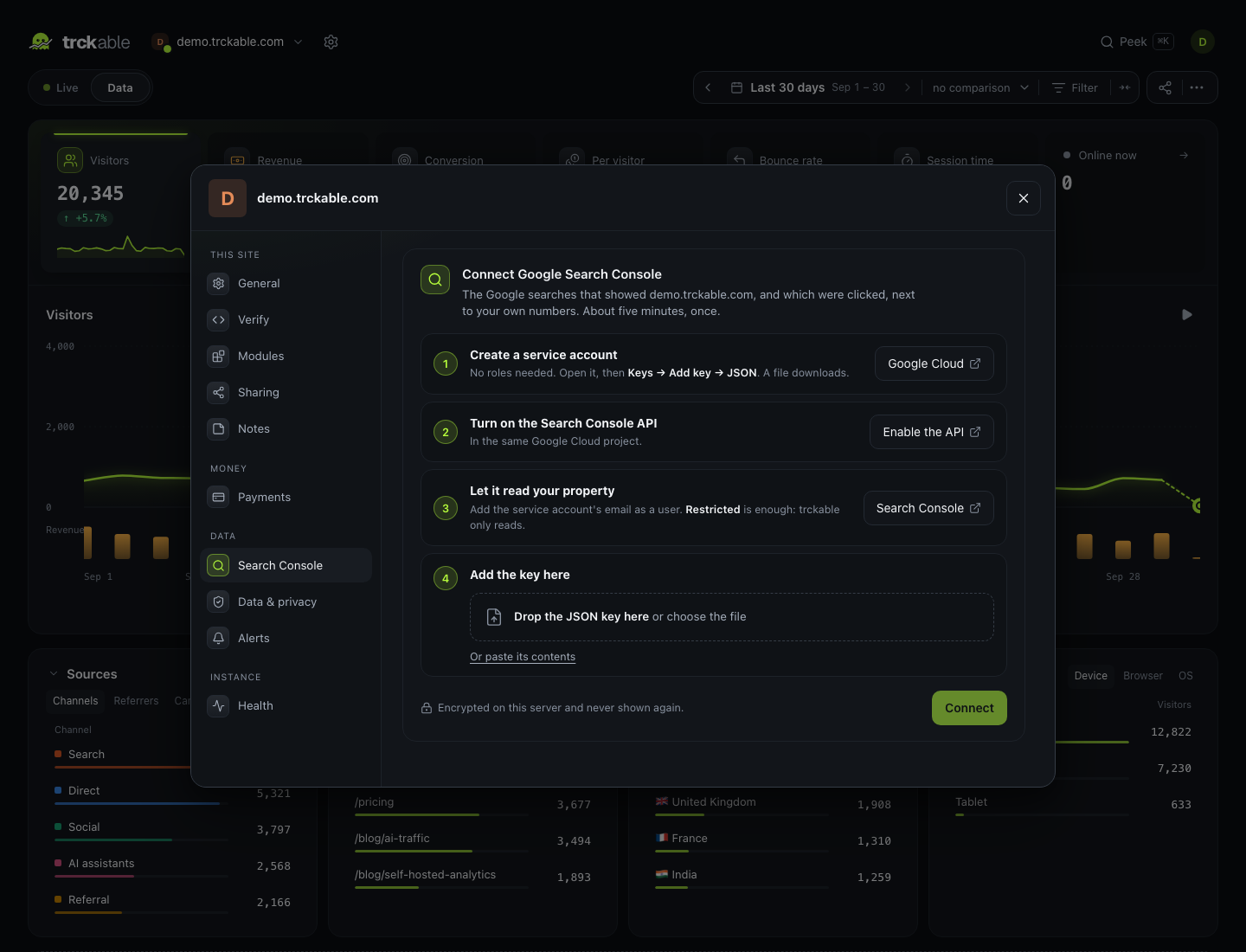
- In Google Cloud, open IAM → Service accounts and create one. It needs no roles. Open it, and under Keys choose Add key → Create new key → JSON. A file downloads.
- In the same project, enable the Google Search Console API.
- In Search Console, open Settings → Users and permissions for your property and add the service account's email address as a user. Restricted is enough: trckable only reads.
- In trckable, open Settings → Search Console and paste the key file, or choose it.
trckable checks the key with Google before it saves anything, so a wrong one is refused with Google's own reason. If the account can read a property that matches your site's domain, that property is picked for you; otherwise choose it from the list. The Search Console module is turned on at the same time.
What you see
Sources → Search lists the searches that showed your site, ranked by clicks. In Full mode each row also shows its click-through rate, and hovering a row shows its impressions and average position.
- The period is the dashboard's period.
- A page filter narrows the list to searches that showed that page, on any scheme and with or without www. A device filter narrows it to that device.
- Other filters (a channel, a country, a campaign) mean nothing in Google's data. They are left out, and the card says so rather than showing numbers that look filtered and are not.
- The last three days are preliminary: Google revises them, so they can still change.
Privacy
trckable asks Google for your own Search Console report when you open the tab, at most once an hour for the same view. No visitor data is ever sent to Google, and nothing Google returns is stored: disconnect it and there is nothing left to delete except the key.
The key is encrypted on your server with TRCKABLE_SECRET, like payment
provider keys, and it is never shown again after you paste it. It is only
ever sent to Google's own sign-in endpoint, whatever the key file says.
If it stops working
Settings → Search Console shows the last answer from Google. The usual causes:
- "This account can't read any property yet": the service account's email has not been added as a user in Search Console.
- The API is not enabled: step 2.
- The key was deleted in Google Cloud: create a new one and use Replace key.
- "The stored key cannot be decrypted":
TRCKABLE_SECRETchanged. Paste the key again.
Goals
Count the things that matter — signups, trials, downloads, a section actually being read — with properties, and without writing code if you would rather not.
Revenue
Stripe, Lemon Squeezy, Polar, Paddle and Dodo. Paste one key, and every sale is credited to the visit that earned it — renewals included.